Working With Unprocessed Orders

Contents
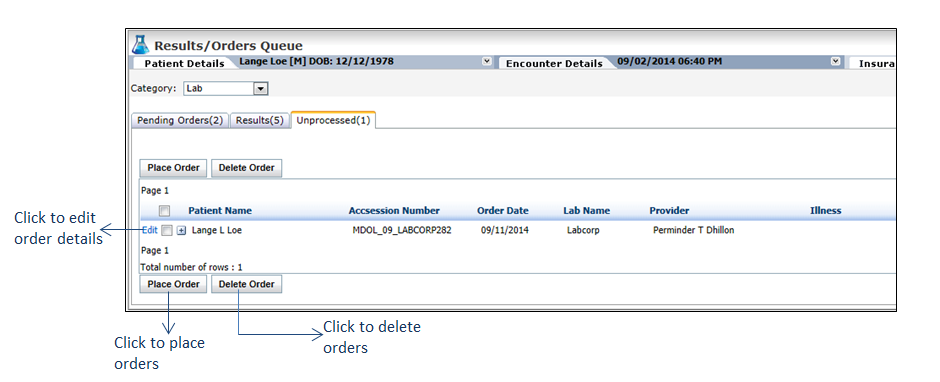
When placing an order electronically, it may happen that some orders are saved but not yet sent to the laboratory. Such orders are referred to as unprocessed orders and can be viewed in this tab.
To work with the unprocessed orders:
| 1. | On the Results/Orders Queue screen, click Unprocessed tab. The Unprocessed tab is displayed with the list of orders that are not yet placed. |
| 2. | In the Unprocessed tab, do the following: |
| • | Click Edit link corresponding to the test you want to modify or place an order. |
| • | Select the check boxes corresponding to one or more tests to be ordered and click Place Order to place the order for all the tests at this time. |
| • | Select the check boxes corresponding to 1 or more tests to be deleted and click Delete Order to delete the selected tests. |
Notes:
| o | The unprocessed orders can also be viewed, modified, and placed from the Lab Order screen by clicking the icon in Unprocessed Lab Orders section. icon in Unprocessed Lab Orders section. |
| o | On the Results/Orders Queue screen, select the Category as Radiology from the drop-down list to work with unprocessed radiology orders. |