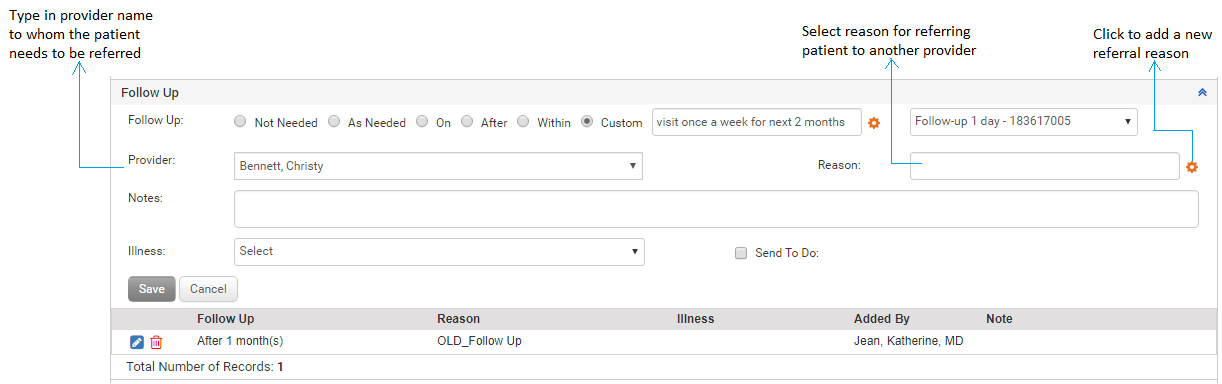
The Follow Up section of Treatment Plan is useful to set up further follow-up with the patient. The follow-up reason can be selected using the drop-down list, illness codes can be associated, and any follow-up notes can be entered in the Follow Up section. The user can also choose to send a To Do reminder for the follow-up.
To record a patient’s follow-up details in Treatment Plan:
| 1. | On the Treatment Plan screen, click the Follow Up link. |
| 2. | In the Follow Up section, do the following: |
| • | Select from the Follow Up options, such as Not Needed, As Needed, On, After, Within, or Custom. Define the period in subsequent fields on selecting the appropriate option. |
| • | Select the Provider and Reason from the drop-down list. If the reason you are looking for is not in the list, click the Personalize icon  to configure the one you want. to configure the one you want. |
| • | Enter the relevant note in Notes field, if any. |
| • | Select the illnesses recorded in the Diagnosis section of that encounter from the Illness drop-down list. Maximum 4 illnesses can be selected. |
| • | Select the “Send To Do Reminder” check box, which reveals 2 more fields: Reminder Date and Remind To. |
| o | Select the date on which the reminder is to be sent. |
| o | Select the provider to whom the reminder is to be sent. This is a mandatory field. |
| 3. | Click Save. The recorded follow-up details appear in the following grid. |
Notes:
| • | Click the edit icon  to edit the follow up details. to edit the follow up details. |
| • | Click the delete icon  to delete the follow up details. to delete the follow up details. |