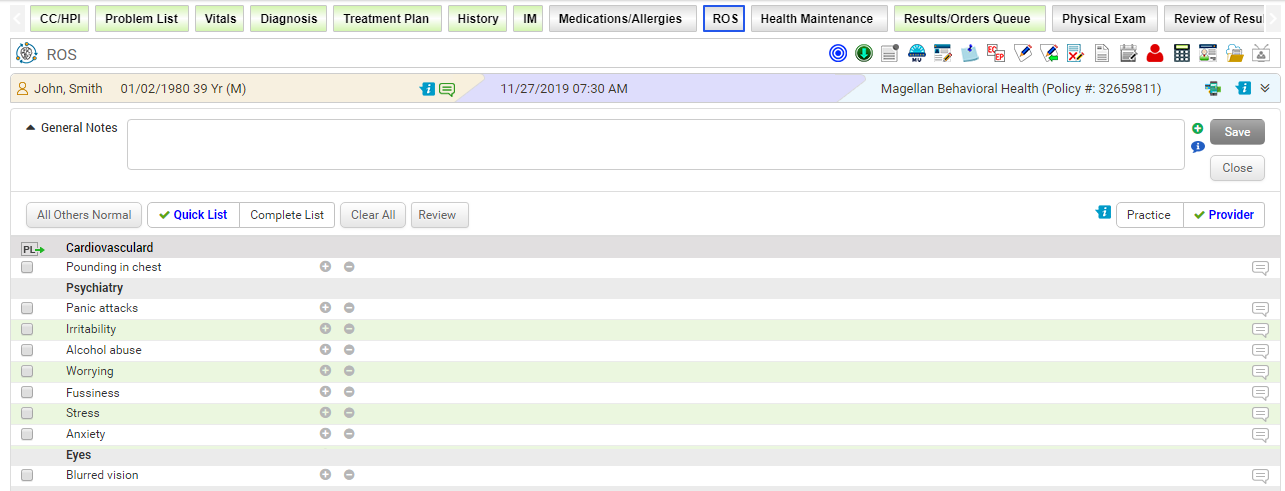
A review of systems is a system-by-system review of the body functions of the patient. It is a technique used by the providers for eliciting a medical history from a patient.
Important points to keep in mind when recording the ROS in the system:
| • | Provider and Practice buttons: |
| o | If the Provider’s favorite list is configured, the Provider and Practice buttons are displayed. By default, the provider’s favorite list is displayed to record the symptoms with the Provider button preselected. Please note that the favorite list of the Provider who is the primary provider of this patient is displayed, and not the logged-in provider. |
| o | If the provider’s favorite list is not configured, a list of all the symptoms configured for that practice is displayed with the Practice button selected. |
| • | Quick List and Complete List: |
| o | If you want to quickly record symptoms for all the configured systems, you can click the Quick List button from the top. This will list all the symptoms on a single page, where you can keep scrolling on the screen and record the symptoms quickly. |
| o | The Complete List view will show all the systems together on top. Clicking each the system will reveal the symptoms configured in it. You can record the symptoms and then click another system link to record its symptoms. |
| o | Quick List and Complete List can be configured from the ROS section in Administration. If Quick list is not configured, only the Complete List is displayed. |
For details on configuration, refer to the CC/HPI/ROS section under Administration.
To record a patient’s review of systems (ROS):
| 1. | In the charting elements ribbon, click ROS. The Review of Systems screen is displayed. |
| 2. | Expand the General Notes section by clicking the  . To add notes using macros, click the macro icon . To add notes using macros, click the macro icon  . . |
| 3. | Provide generalized notes related to patient’s findings in the text box provided. |
| 4. | On the Review of Systems screen, do the following: |
| • | To view the provider’s favorite list of symptoms, click the Provider button. |
| • | To view a list of all the configured symptoms for the practice, click the Practice button. |
| • | To view a complete list of systems and symptoms, click the Complete List button. All the body systems are displayed together on top. |
| • | To view a quick list of systems and symptoms on a single screen, click the Quick List button. |
| • | Select the appropriate buttons to record the +ve  or –ve or –ve  symptoms findings. symptoms findings. |
| • | Once the abnormal values are recorded for symptoms, click All Others Normal. This will record the normal values for the remaining symptoms. |
| • | Click the notes icon  to reveal the empty box. Enter any notes pertaining to Review of Systems in this box. to reveal the empty box. Enter any notes pertaining to Review of Systems in this box. |
Notes:
| • | To clear the recorded symptoms, click Clear All. This will clear out all the recorded symptoms for that system in the Complete List. In the Quick List, this will clear out all the recorded symptoms of that particular page. |
| • | Locate the Notes box on the far right corner in the grid. Click in the box to enter a line item level note for each symptom. |
| • | Select the check boxes corresponding to the symptoms you want to export to the Problem list, and click the export to problem list icon  to export to problem list. to export to problem list. |
| • | Once reviewed by the provider, click the Review button. Your name will appear as a reviewer along with date and time. You can modify the date and time of your review. |