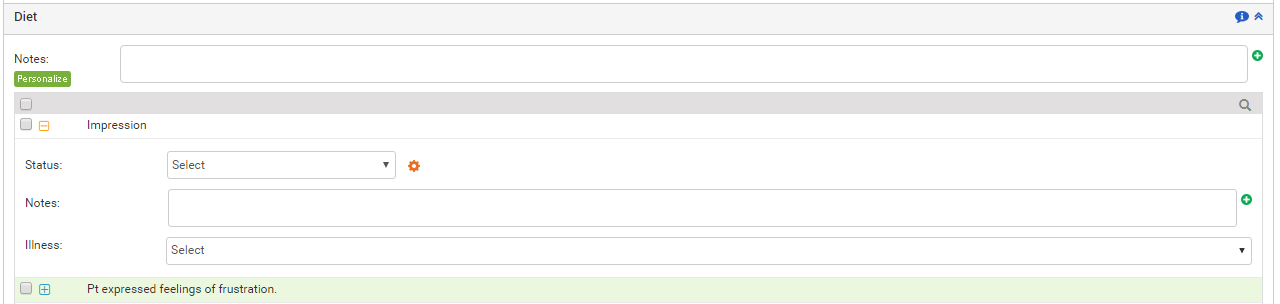
Based on the assessment done on the patient, the provider may want to outline the diet plan for the patient. The Diet section helps the user to add the diet plan details. The Diet section is categorized in 2 different subsections where you can enter the general notes separately in each section. The ready-made templates can be used to insert the notes. The user can configure these templates in the system, also known as macros.
Once the diet details are recorded, they can be viewed on the Diet ribbon along with diagnosis codes attached and the general notes entered.
To record the recommended diet plan in Treatment Plan:
| 1. | On the Treatment Plan screen, click the Diet link. |
| 2. | On clicking the Diet link, a list of configured diet plan appears. |
| • | Enter any generalized notes pertaining to all the recommended diet plan items being recorded. |
Note: Click the  icon near the Note box to use the preconfigured notes added with the help of macros. The macros can be configured from the Administration > Treatment Plan > Diet section.
| • | To search any specific Diet, you can use quick search panel that appears just above the listed Diet options. |
| • | Select the check boxes near the diet name to record them. |
| • | Click the Plus icon ( ) near the diet name to expand the details. ) near the diet name to expand the details. |
| • | Hover mouse over the Illness section. A list of illnesses recorded in the Diagnosis section of that encounter appears for selection. |
| 3. | Once the diet plan items are recorded, they can be viewed on the Diet ribbon along with the diagnosis codes attached. |