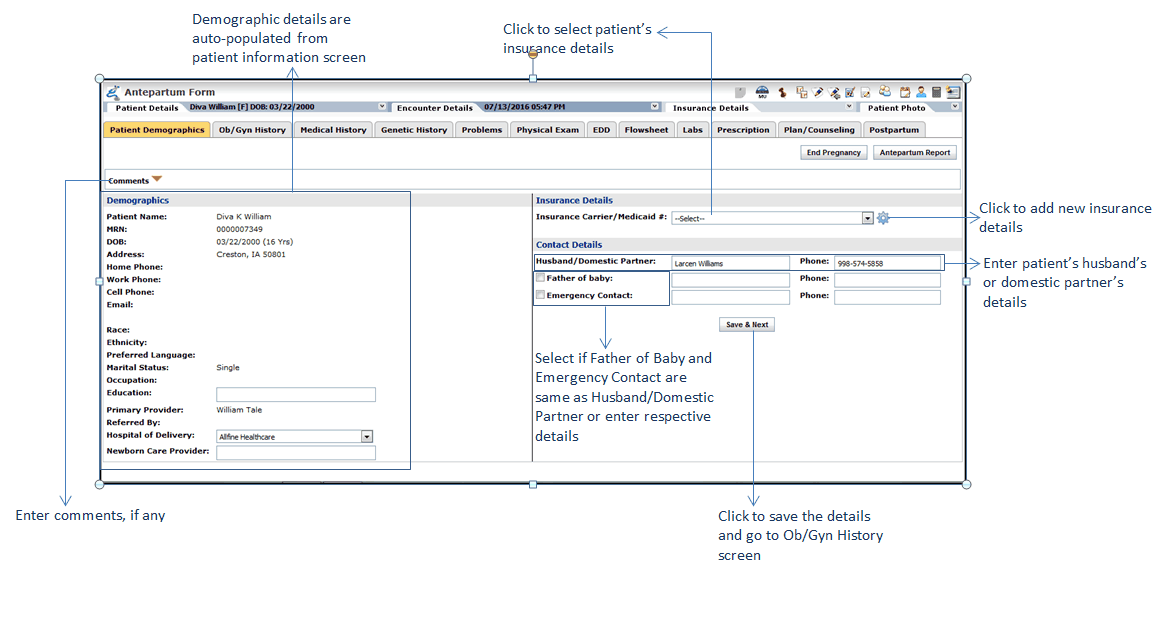
Once encounter is started using encounter type Antenatal Visit or Antenatal Visit-Followup, providers can record the patient’s pregnancy details using Antepartum Form. System displays patient’s demographic details when recording antepartum record. You can record the following additional information if it’s not recorded in patient demographics section:
| • | Patient’s Insurance Details |
| • | Contact Details of patient’s husband / domestic partner, Father of Baby, or Emergency Contact |
Patient’s details recorded in the Demographics section appear on the Antepartum Report.
To record patient's demographic details:
| 1. | In the charting elements ribbon, click Antepartum Form. Patient's demographic details are displayed on the screen. |
| 2. | In the Demographics section; |
| • | Start typing patient's education and select using smart search options. |
| • | Select Hospital of Delivery using drop-down list. |
| • | In the Newborn Care Provider field, start typing the provider name and select using smart search results. System populates the list of referring providers. |
| 3. | In the Insurance Details section; |
| • | Click Add Insurance to add new insurance for the patient. |
| Note: If patient has only 1 insurance then system by default displays that insurance details. In case of having multiple insurances, start typing the insurance name and select using smart search options. |
| 4. | In the Contact Details section, |
| • | Enter the name of the patient's Husband/Domestic Partner. |
| • | If the father of baby is same as Husband/Domestic Partner, select the Father of baby check box or enter the name of the father. |
| • | If the emergency contact is same as Husband/Domestic Partner, select the Emergency Contact check box or enter the name manually. |
| • | Enter phone numbers of the Husband/Domestic Partner, Father of baby, or Emergency Contact in the respective fields. |
| 5. | Enter Comments, if any. |
| 6. | Click Save & Next. The Ob/Gyn History screen is displayed. |