Filtering Encounters

Contents
For some patients, you may have recorded multiple encounters for their different visits with the facility. At any time, you can view only the 5 latest encounters on the screen and use pagination to view more past encounters. In such cases, you can filter and view some specific encounters.
To filter an encounter:
| 1. | On the Facesheet screen, expand the Encounter Details panel. |
| 2. | Click the Advance Search icon . . |
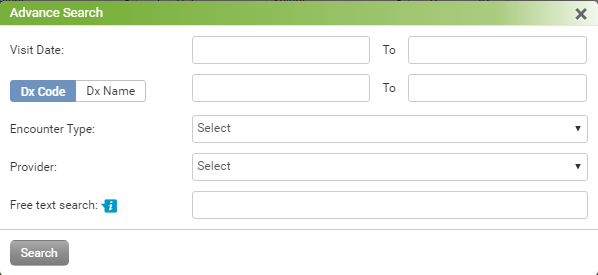
| 3. | On the Advance Search screen, encounters can be filtered by following search criteria: Diagnosis Code, Diagnosis Name, Encounter Type, Visit Date Period, Provider, and Text entered in encounter. |
| 4. | Specify the details to filter the encounters and click Search. The filtered encounters will be displayed in the Encounters Details section. |
Notes:
| • | When an encounter is filtered by text search option, the system will search that particular text in all the charting elements and display it in the Sections link. On mouse hover over the Sections link, Section Summary pops up. This will have all charting elements in which the searched text is found. You can click in particular charting element link to navigate to that section. |
| • | To clear the search criteria, click the Clear Search icon . . |