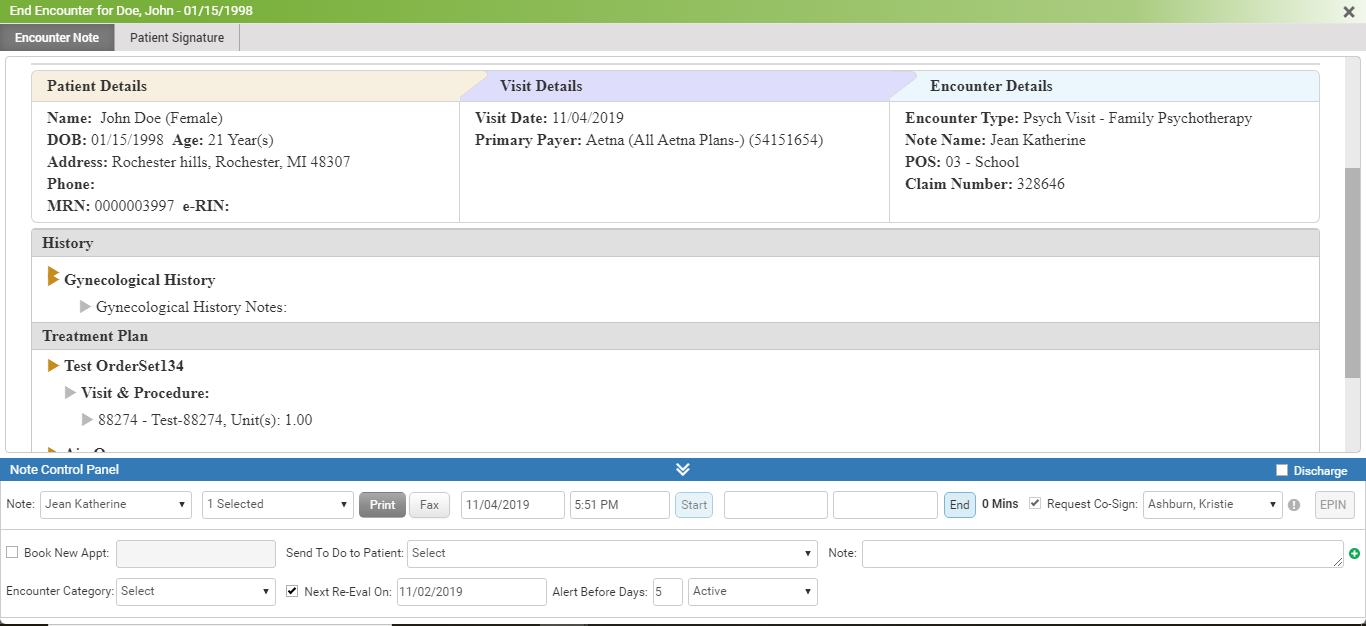
Once all clinical details are incorporated for already started encounter, you need to end the encounter.
To end an encounter:
| 1. | On the Facesheet screen, click the blue clock icon  for an encounter you want to end. A screen appears displaying all the charting elements on top corresponding to the encounter. for an encounter you want to end. A screen appears displaying all the charting elements on top corresponding to the encounter. |
| 2. | Click the End Encounter icon  from the icons shown in the top right corner. On the End Encounter screen, you can see the various tabs on the top. from the icons shown in the top right corner. On the End Encounter screen, you can see the various tabs on the top. |
| • | The Clinical Quality Measure Reminders panel is displayed only when the “I also want to see CQMs reminder at the time of end encounter” check box is selected in the Practice Defaults section. |
| • | The Meaningful Use panel is displayed only when Meaningful Use End Encounter Level Reminder is configured in the Practice Defaults section. |
| 3. | You can view the Encounter note for the corresponding patient encounter. |
| 4. | Expand the Note Control panel. Select the Note Type and Notes Name from the drop-down list. The Encounter note is displayed in descriptive or report format based on the configuration done in Administration. |
| 5. | Enter additional details in the Note field, if any. |
| 6. | Add Additional Signature along with a Note, if required. |
| 7. | To assign Encounter note for co-signature to the senior provider, do the following: |
| • | The Request Co-Sign check box is selected and disabled or enabled. |
| o | If the check box is selected and disabled, it is mandatory to send the co-sign request to the senior provider. |
| o | If the check box is selected and enabled, it is not mandatory to send the co-sign request to the senior provider. Deselect the check box so that the co-sign request will not be sent to the senior provider and enter the EPIN to end the encounter. |
| • | Select the senior provider who must co-sign the Encounter note from the drop-down list. |
| • | Select the Mark as Highly Important for Co-Signature icon  to mark the specific Encounter note as highly important for co-signing so that the senior provider can filter such notes to co-sign on priority. to mark the specific Encounter note as highly important for co-signing so that the senior provider can filter such notes to co-sign on priority. |
Note: The above options are displayed based on the configuration done in the Resource Management section in Administration.
| 8. | Locate the Start Time field. Click the Start button to record encounter start time (if not recorded.) |
| 9. | Locate the End Time field. Click the End button to get the current date and time in this field and this will automatically display Total minutes of the encounter. If you skip to record start time or end time when ending an encounter, a message pops up for confirmation to proceed. |
| 10. | Enter a valid EPIN number to end the encounter. The encounter is ended successfully. |
Notes:
| • | Once the encounter Start Time and End Time are recorded, he total time is calculated as the difference between the start time and end time and is displayed on the Encounter note. However, the encounter start time and end time can be edited at any point in time by accessing the More link on the Facesheet screen. |
| • | Ending an encounter within 4 business days from visit date is one of the criteria to increase numerator for “Core 7a: Patient Electronic Access-Patient Portal Access” of MU-2. Please refer to the above section in Meaningful Use Stage – 2 User Guide for more details. |
| • | Once the encounter is ended: |
| • | Encounter note is placed in the Document Manager under Encounter Note folder. |
| • | In the Facesheet screen, on clicking More, the Clinical Summary link is displayed. On clicking the link, you can save or print the patient’s Continuity Care record. |
| • | The senior provider to whom Encounter note is assigned for co-signature will receive a To Do for the same. |
| • | Ensure that the clinical summary is provided to the patient within 1 business day. This helps in increasing numerator for “Core 8: Provide Clinical Summaries for patient for each office visit” of MU-2. Please refer to the above section in Meaningful Use Stage – 2 User Guide for more details. |
| • | You can also assign the Encounter note for co-signing to the senior provider by clicking the More link from the Facesheet screen and selecting the senior provider from the Assign for Co-Signature to drop-down. |
| • | The Encounter note will appear on Senior provider's Dashboard (Co-Signature Queue section). Also, the senior provider to whom Encounter note is assigned for co-signature will receive a To Do if the Highly Important check box is selected for the Encounter Note. For details on Co-Signature Queue section, refer to the Recording Co-Signature by Senior Providers section below. |
| • | The Encounter note that is not sent for co-signing to the senior provider can be co-signed by the provider himself/herself by clicking the Co-Signature panel. For details on Co-Signature, please refer to the Recording Co-Signature by Junior Providers section below. |